Wednesday, 10 May 2017

Quit/Restart/Controls

These menus have controller support, to read how this was achieved, please read the post titled Menus with Controller Support.

This post will cover the simpler menu items.

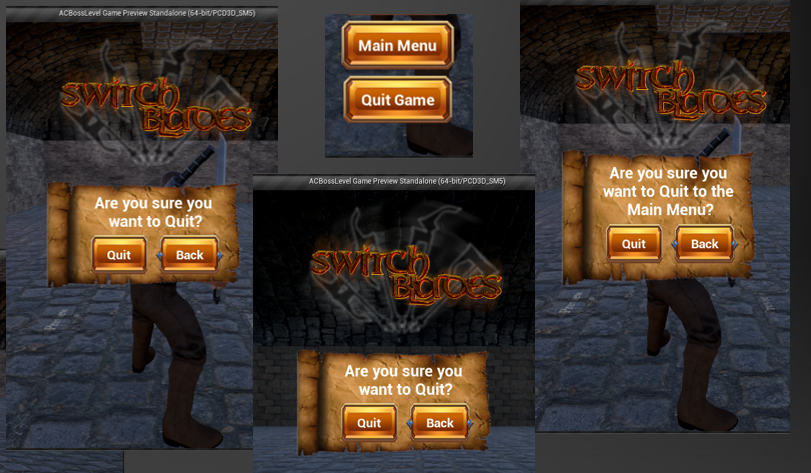
For each of my Quit options, I have a secondary menu widget that appears that allows the player to confirm or back out of the option. This is simply a menu widget with two buttons as well as an input capture for pressing the 'B' button on the controller.


The controls option from the Pause menu is also a simple widget with an image of the controls and a back button. This also contains an input capture for the 'B' button to back out and remove the widget.

Tuesday, 9 May 2017

Main Menu, Options

This post will cover the contents and functionality of the Main Menu and Options screen. To see how I implemented controller support, please see the pose titled Menus with Controller Support.

In the main menu, I didn't want to overwhelm the user with too many options, so I limited it to just Starting a new game, setting graphics options and quitting the game.


New Game takes the player to the level select screen.

Options takes the user to the Graphics Options, which looks like this:


As you can see, the user's chosen options will remain pressed, to show which option is selected.

The options are first set by the player, then they will apply when the 'Apply' button is pressed.

This is achieved by having a set of console command functions in text string arrays.

Clicking the buttons set which functions are added to the final array.


 When the Apply button is pressed, a loop will set the commands array running, which will set the player's options.


With this method, I think it's easier to integrate new options and also to re-purpose the code to other functionality, so it can be re-used at a later date.

As the options menu is so large, it was extremely time consuming to add the controller support, but I did do it. Here's what the controller code looks like, 22 buttons integrated.

Monday, 8 May 2017

Pause Menu - Un-pausing

For my menu system, one of the goals is controller functionality.

To see how I achieved controller funtions on the menu buttons, see the post titled Menus with Controller Support.

A problem I ran into with my pause menu was that when you pause the game, everything that isn't running in the menu pauses, including outside controller functions. This means that you cannot un-pause a game using a controller face button unless you do a specific thing.

The first method I tried was simply having a Flip/Flop on the player controller that paused and un-paused the game each time it was pressed. This failed due to the above problem; functions on the player character pause when the game pauses.

I also tried to use standard button input captures in the actual menu, but those are not directly supported (but I was on the correct line of thought).

A new tact was needed:

Function Input Overrides

This special type of function allows a menu widget to capture button inputs that aren't part of the normal navigation or mouse interaction associated with menus.

In this instance I'm getting a capture for either the controller 'Start' button or the 'P' button on the keyboard, which if detected will use an event dispatcher that communicates with the player character to take the game out of it's paused state and remove the menu widget from the screen.


I think this is an okay way of doing things, but it would be nice if Epic implemented standard input calls into the menu, as this would make it easier to assign things to specific buttons without going through a special function, which could end up having several branches if many button functions are required.

Sunday, 7 May 2017

Menus with Controller Support

One of my goals with this project was to create menus with controller support.

I thought this would be a simple affair, but it seems it's a bit more difficult than simply having the controller focus a widget.

The expectation was that setting the button style for mouse hover would also work for having the button focused with the controller, but this is not the case.

There is a 'quirk', though it is intended functionality, with UE4's menus in that mouse hover and controller button focus are treated as different things, which is probably useful in some circumstances, but makes controllers interacting with simple list menus more complex than they need to be.

To get this to work as one would expect, you need to capture which menu item is being focused by the controller and set the button style accordingly.

This is achieved by first adding all of the buttons in the menu to an array when the menu is created in memory.


This array is then used by a loop function checking the focus status of each button in turn, constantly updating which one is focused or not. This makes is less efficient than it would be if focus was treated as hover.


While this method works for the controller, it also breaks the standard hover functionality of the mouse, so we need to capture the hover status of the buttons and convert that hover into a focus state so it can be processed correctly by our function.


I feel it is an oversight on Epic's part to not at least allow a option in the widget setting that lets focus be treated as, or at least handled in the same way as, a mouse hover event. Another way this could be solved is have a focus style setting in the list along with hover. Games are being forced to be less efficient if they are required to use this method to control menus in a way the player would expect, plus it takes a much longer time for the developer to set each menu up.

Just look at all the extra code and looping required just to add this controller functionality to a menu.

Saturday, 6 May 2017

Loading Screen

For loading into the game, I wanted a real loading screen. For this reason, I moved all my loading code into the loading screen and linked a progress bar to a variable which I increased as each part of the code executed.

Shown below is a section of the code:


And this is how the loading screen looks in game:

Friday, 5 May 2017

Interactive Menu Toy

For my interactive menu toy, I didn't want to go too mad with weirdness, so I created a line-trace interaction that finds objects which it hit and applys a radial force to them, to make them move around with physics.

I started by creating the objects which would be used. I made a blueprint that contains a static mesh component and a contruction script which tells the object to spawn as either a crate or a barrel using an array of objects and a random index.


I then created a blueprint which is similar to my enemy spawning objects, which spwns a number of objects in a radius around the object centre point.

I placed this in my player select screen, so this means that each time the game is started, there are a different set of objects in different positions for the player to interact with.

The Interaction

The actual interaction is on the dummy character spawned when the game starts.

I created a gate node that opens whenever the input button is pressed. This creates a line trace from the mouse pointer screen position into the screen. When an object is hit it creates a radial input at the object position, which causes it to react.


And the result is flying crates and barrels.

Thursday, 4 May 2017

Colors and Themes

For the UI and Menu graphics and general theming I chose some Natural/rustic tones of Wood, Metal, Parchment, Stone, Yellow/Orange Gems.

The Yellow/Orange/Brown colour range matches the Medieval stone, sand and wood of the in-game level with some highlight colours where needed, such as blue for drawing the eye towards active menu buttons.